Begin your sustainability journey with your organization's largest source of emissions, employee commuting.

Setup Time
5 Minutes
Requirements Employee List (.csv)
How to Create an Account
To get started, create an EC Emissions Account. Enter your desired account details and account information.
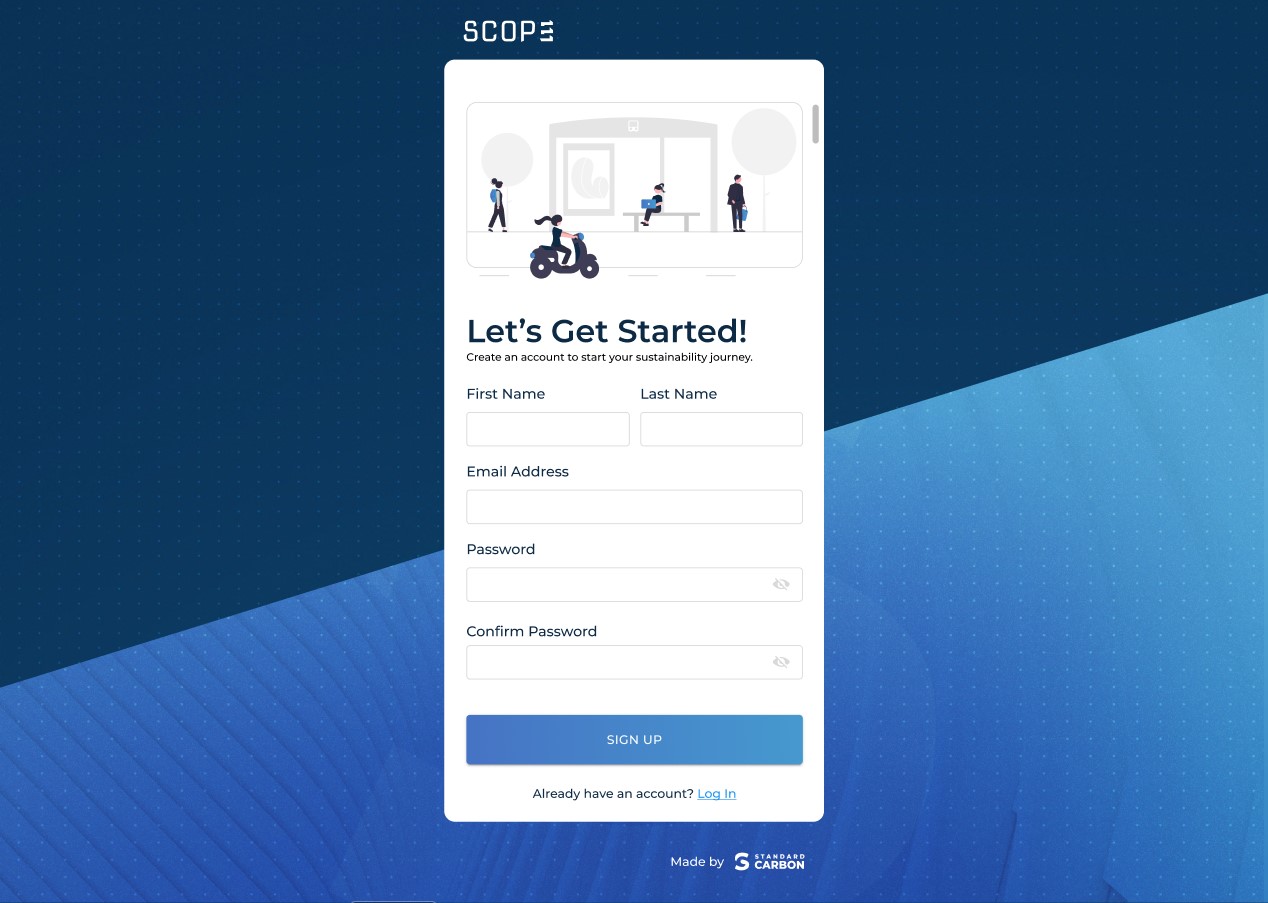
1. Go to the Sign up page 🡥

2. Fill in company information as requestedNote: Fields marked with "*" represents information that is required.
3. Verify your account
After hitting submit, check your inbox to verify your email.
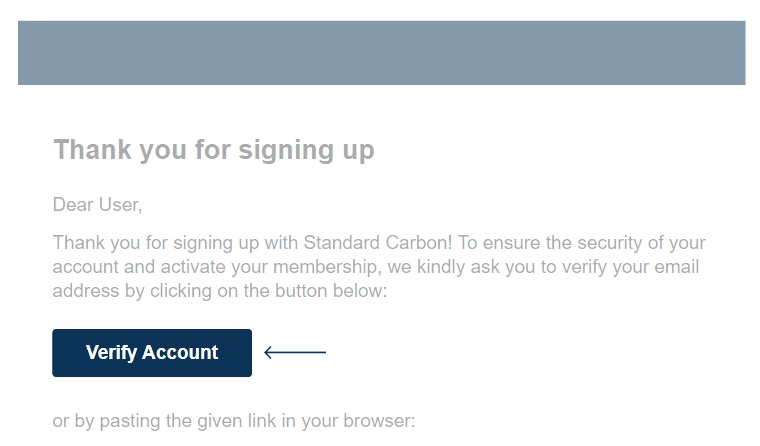
4. Once verified, go to the log in page 🡥

ACCOUNT CREATION
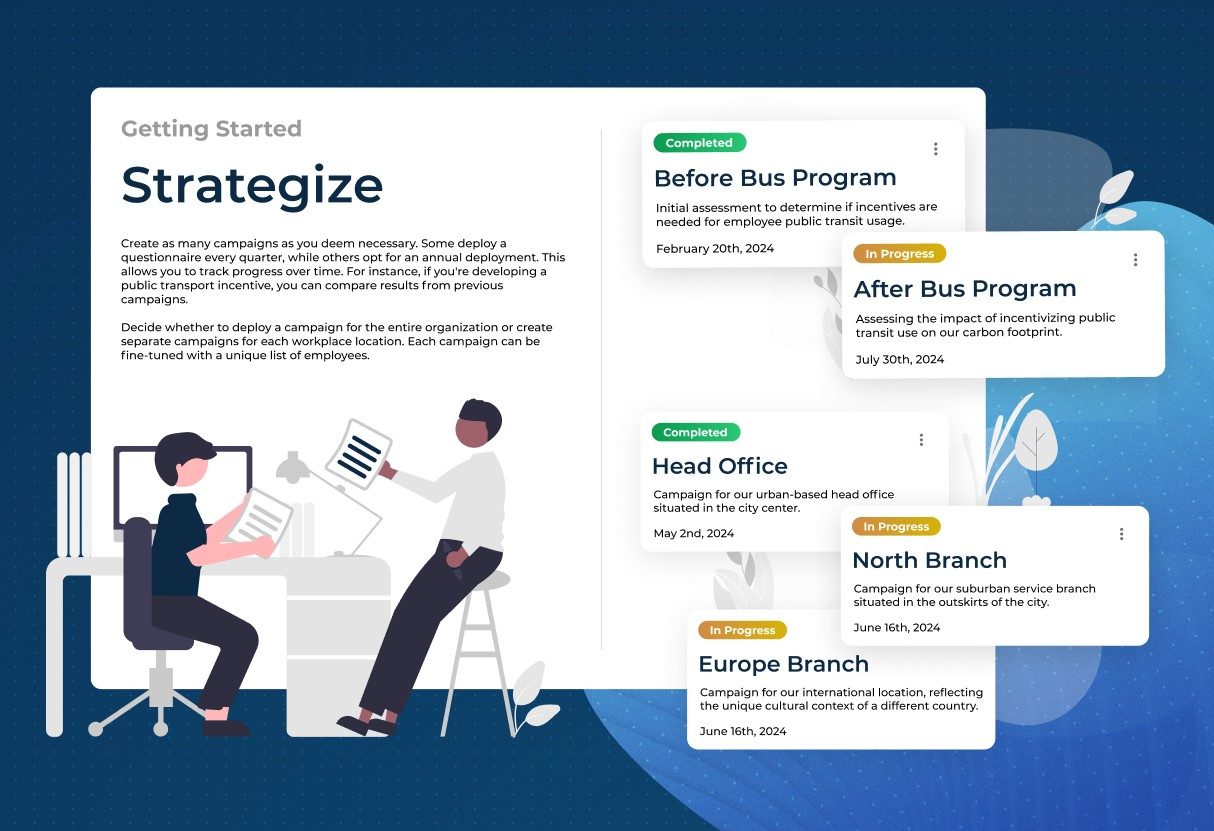
Create your first campaign
The onboarding screens will help you understand and learn to set up campaigns and how they work.
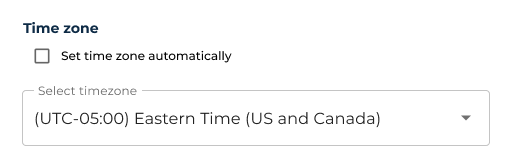
1. Set time zone.Select 'Set time zone automatically' to automatically detect your browser's time zone. Make sure to hit "Allow" for location permissions within your browser.
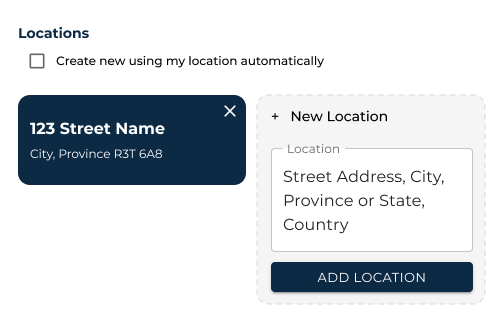
2. Add your company locations.This will determine the location options which your employees can select from. If you would like to create a location based on your browser's location: Select the checkbox next to "Create new using my location automatically"
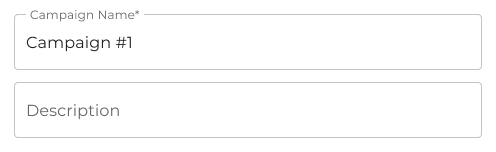
3. Give your campaign a name.A campaign name is required, you can always change this later. Edit the description as needed.
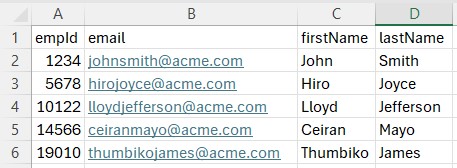
4. Add your team membersAdd your team members by uploading a .csv file that includes their emails. Download the sample file below to verify the structure. The only required column is the one which includes the employee's emails.

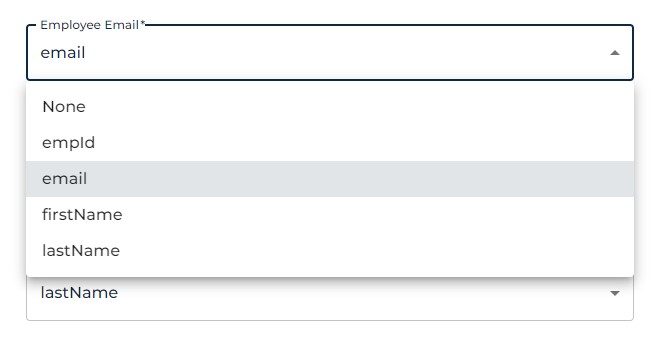
5. Configure your uploaded spreadsheet.Map the data to its' respective column.
For the example below, our employee's emails are under the column named "email". So we will map the 'Employee Email' field to the column named 'email'.
Having trouble? Check out Troubleshooting Employee List 🡥
5. Set the commuting locations.Select all the locations which you would like to include for this campaign. This determines which locations your employee can select during their commute analysis. Select from the locations you created earlier, or create new ones.
Starting a campaign
Requesting information from your employees have never been easier. Start your campaign to start collecting data about your organization's carbon emissions from employee commuting.
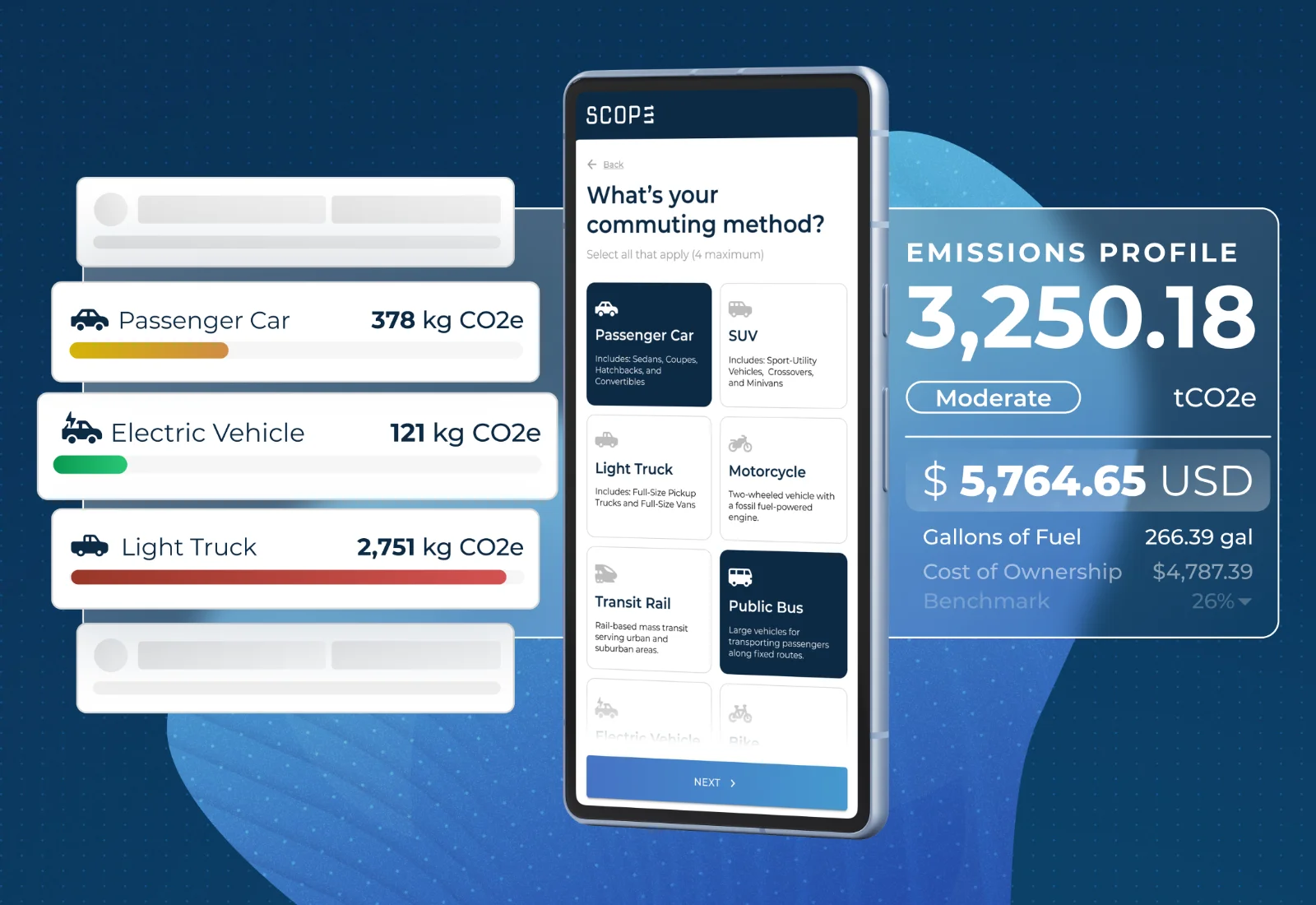
1. Select an email deployment method below:
Automated Email DeliveryOur system will send an invitation to your employees at a scheduled time.
Recommended method if you would like to engage your employees at a later date.
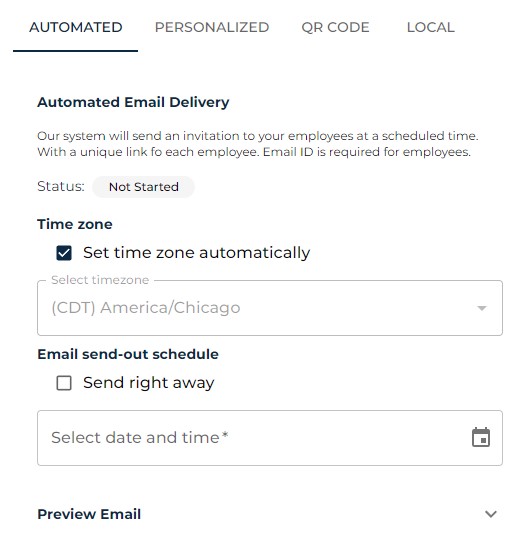
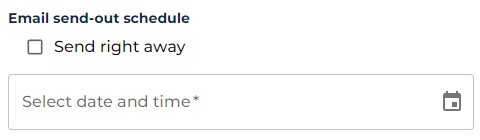
Schedule when the emails will be sentSet the date and time you would like to send out the emails to your employees. If you would like to deploy the analysis right away; hit the box next to "Send right away"
Manual Email Delivery
Send a mass email manually, don't worry we will autofill everything for you.
Recommended method if you would like to personalize the email going out to your employees.
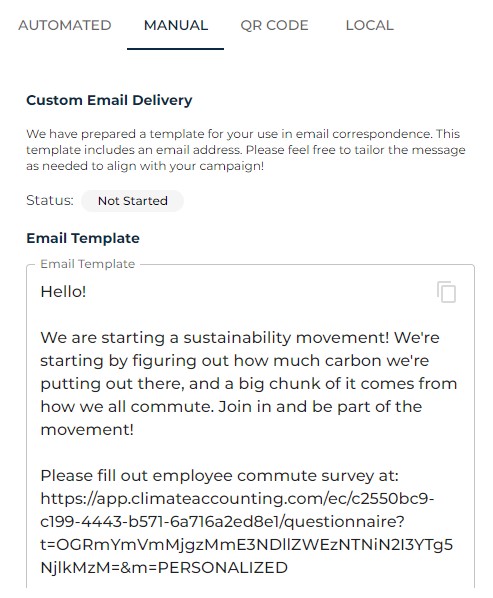
Review the templateThis method will open your local email application, from there you will be able to customize the email body and recipients.
QR Code
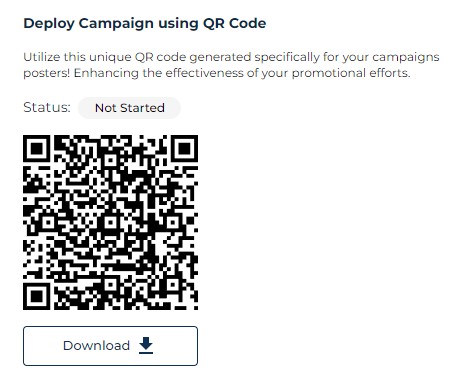
We provide you a QR Code for every campaign you create. The QR Code will lead your employees to complete their commute analysis. This is ideal for creating posters that would be up around your office.
Local Mode
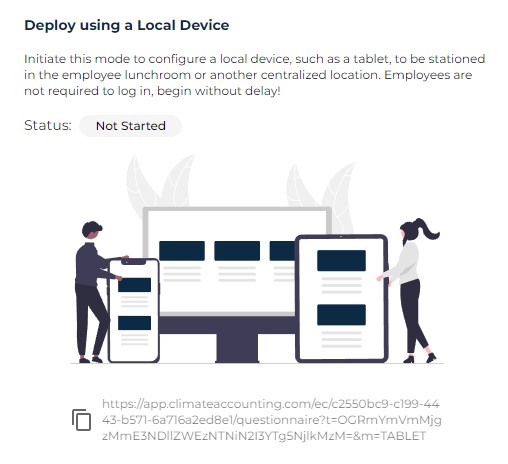
This mode is ideal for setting up a tablet at your workplace's lunch room. Local mode allows your employees to complete their commuting analysis via a device they can trust.
Troubleshoot
Check if you already have an EC Emissions AccountIf you signed in to EC Emissions before, you already have an account. You can use the same username and password you created to sign in.
If you can't remember your credentials, enter your email address 🡥 to reset your password.
You can sign into an existing EC Emissions Account 🡥Check if your uploaded Employee List is configured correctlyMake sure your .csv file is formatted as "CSV (Comma delimited) (*.csv)"
Double check that the data fields are mapped correctly in the configuration stage.
For example: Email is mapped to the column in your spreadsheet which includes employee emails.
See example 🡥Make sure emails are deliveredIf the automated email delivery is not reaching your employee's inbox. It's due to your email provider blocking requests from our server. Try the manual email delivery method to ensure delivery to your employees. Or whitelist our mail servers.
Whitelist our email server 🡥
Other deployment methods 🡥
Need more help?
Try these next steps:
Visit our Help Center
Detailed documentation on every page,
menu and calculation.
See all articles 🡥
Contact Us
Get in touch with one of our carbon experts to assist you with your sustainability journey. View All 🡥
Contact us 🡥Help Center Getting Started
 Methodology
 FAQ
Tell us what went wrong and we’ll get back to you.